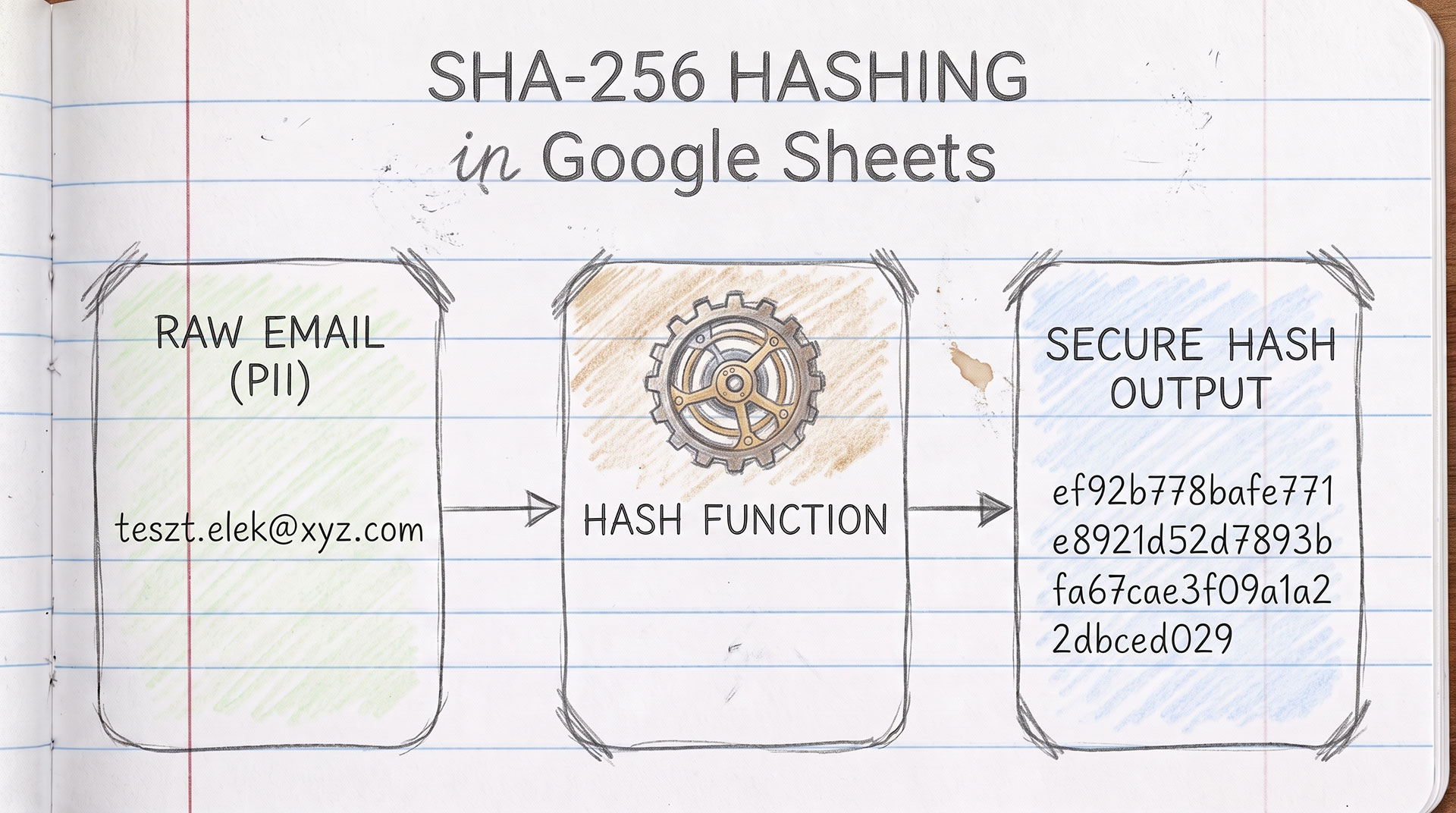
Nowdays I am often surprised to find that team members pass sensitive data directly to AI agents exactly as it is.
I believe that in the AI era, handling PII within spreadsheets is more important than ever.
What is PII?
Personally Identifiable Information (PII) is information that can be used to distinguish or trace an individual’s identity, either alone or when combined with other information that is linked or linkable to a specific individual.
Examples of PII:
- Names, addresses, phone numbers, email addresses, and social security numbers
- IP addresses, login credentials, and device IDs
- Biometric data, such as facial recognition and fingerprints
- Health records, financial information, and employment history
- Online activities, such as browsing history and search queries
Sharing PII can have its benefits, as it allows businesses to tailor products and services to the wants and needs of their customers, such as serving up more relevant search results in navigation apps. However, the growing storehouses of PII accumulated by organizations attract the attention of cybercriminals.
Hackers steal PII to commit identity theft, sell it on the black market, or hold it captive via ransomware. According to IBM’s Cost of a Data Breach 2024 report, the average cost of a data breach caused by a ransomware attack was USD 5.68 million. Individuals and information security professionals must navigate a complex IT and legal landscape to maintain data privacy in the face of these attacks.
That is why I came up with a solution to make hashing PII data in Google Sheets easier.
What problem does it solve?
Google Sheets doesn’t have a built-in SHA-256 function. If you’ve ever tried to generate SHA-256 hashes directly inside a spreadsheet, you know it’s surprisingly not a default feature.
How it works?
Instead of exporting your data to another tool, you can actually create your own custom formula with a few lines of Google Apps Script — and use it just like any built-in Sheets function.
Once you add the script to your spreadsheet, the custom =SHA256() formula becomes available just like any built-in function.
=SHA256(A1)
That’s it. Point it at any cell and it returns the SHA-256 hash of its value.
I wrote a quick walkthrough on how to set it up. The full guide, code and README are available in the public GitHub repository.
Summary
I originally built this for a marketing data use case: hashing email addresses and other PII before passing them to external tools. In a world where LLMs and AI pipelines process more and more personal data, hashing at the spreadsheet level is a simple but meaningful step to protect sensitive information before it leaves your control.
If you work with audience data, contact lists or any PII in Google Sheets — this is a small addition that can make a real difference.